

.mux/mcp.jsonc.
Configuration
You can either configure the servers in the UI (Ctrl+,):
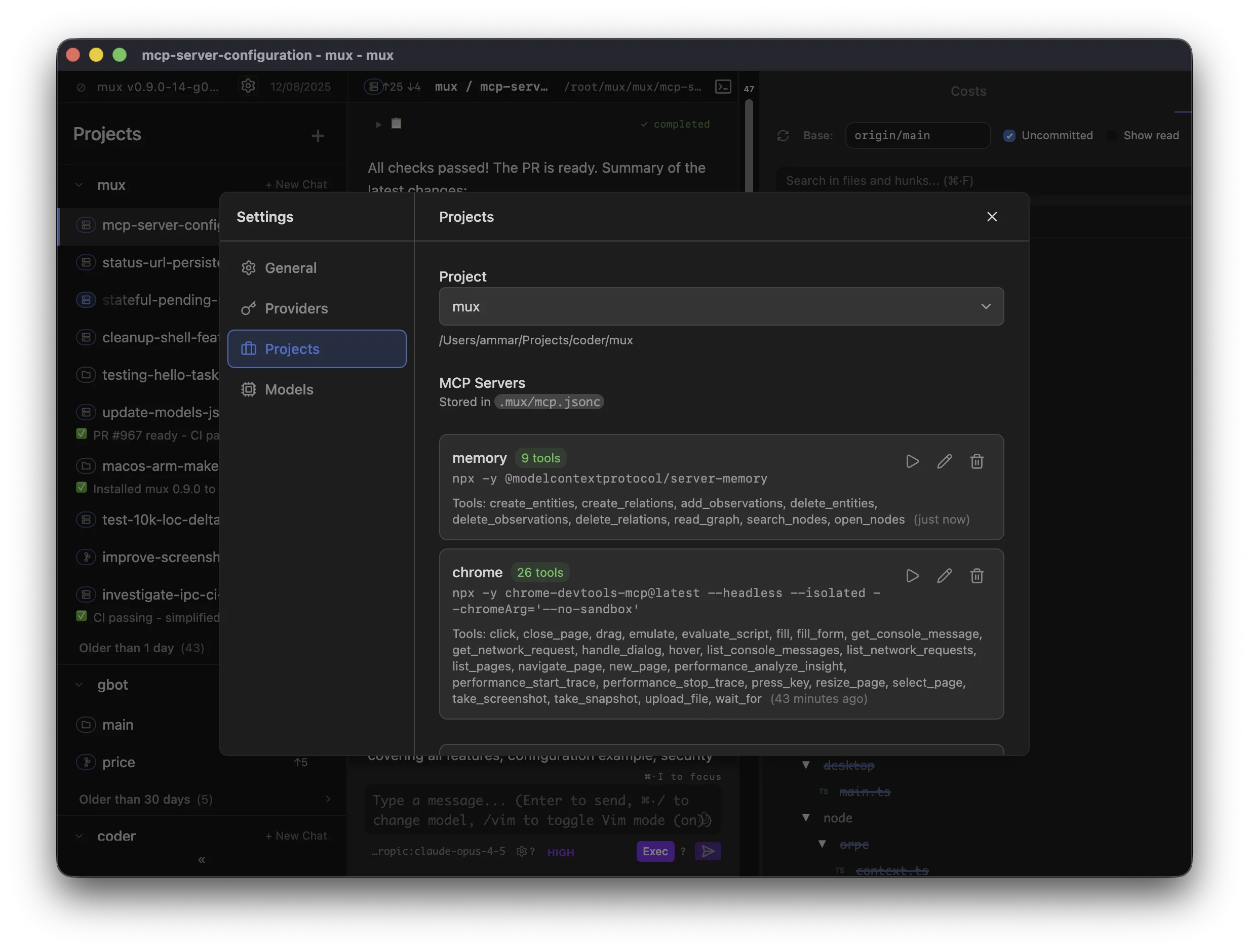
.mux/mcp.jsonc file in your project root:
Slash Commands
Manage MCP servers directly from chat:| Command | Description |
|---|---|
/mcp add <name> <command> | Add a new MCP server |
/mcp remove <name> | Remove an MCP server |
/mcp edit <name> <command> | Update an existing server’s command |
Scope
MCP servers have two scopes:- Configuration is per-project — The
.mux/mcp.jsoncfile lives in your project root and applies to all workspaces created from that project - Runtime instances are per-workspace — Each workspace runs its own server processes, so state in one workspace doesn’t affect another
Behavior
- Hot reload — Config changes apply on your next message (no restart needed)
- Isolated — Server processes run in the workspace directory with its environment
- Lazy start — Servers start when you send your first message in a workspace
- Idle timeout — Servers stop after 10 minutes of inactivity to conserve resources, then restart automatically when needed
Finding MCP Servers
Browse available servers at mcp.so or the MCP servers repository.Troubleshooting
If a server fails to start:- Test the command manually — Run the command in your terminal to verify it works
- Check dependencies — Ensure required packages are installed (
npx -ydownloads on first run) - Use the Test button — Settings → Projects shows connection errors inline